The NIK service team advises: How to exchange data between machines in one field?
IN previous articlewe have revealed the possibilities of fully automatic data exchange between machines and the office through the software Autosync.
Now it's time to pay attention to the steps on the correct setup and operation of AutoSync, through which we will ensure a smooth and fast transfer of information and eliminate the possibility of data duplication.
Software setup is carried out initially on the desktop version, and then on all connected devices. In our cases we will use a display Trimble GFX-750. The steps to start AutoSync through a laptop or desktop computer are short, but important in order to determine to which displays and operators - what information you are going to send. For the correct setup of the desktop version, you can contact our software experts.
Setting up AutoSync on a Trimble navigation display
The steps to set up AutoSync on Trimble navigation displays are also easy and quick. Step 1: Connect to the InternetOne of the main requirements when working with AutoSync is that the display be connected to the Internet. For this purpose:
- Press the icon for Settingson the display
- Connect to the Internet via Wi-Fi connection/atGFX-750and GFX-350/or via modem/at TMX-2050/
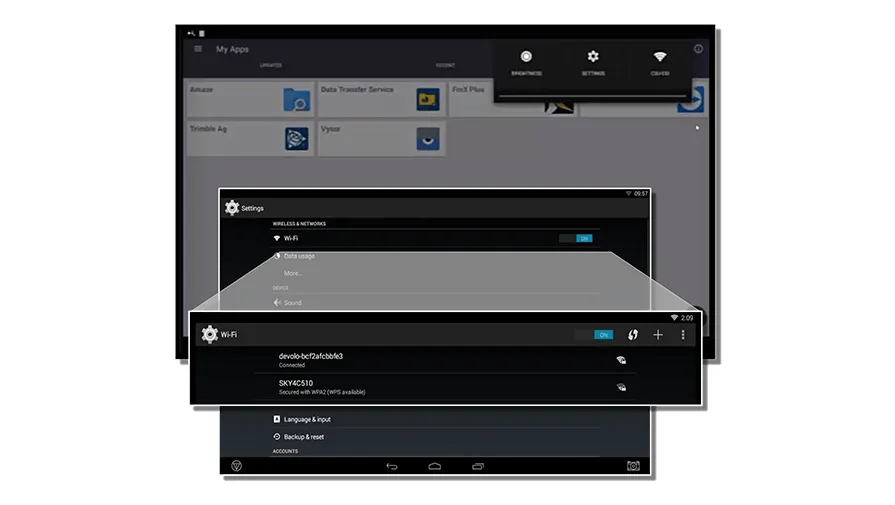
Photo: Connecting Trimble displays to the Internet/Wi-Fi/Step 2: Trimble Ag App Thanks to the fact that Trimble displays work with the Android operating system, they have a wide range of applications that you can download from the “App Store”. One of them is Trimble Ag/in the latest versions you may also encounter it as AutoSync Ag/, which you will need to set up AutoSync. Select the Trimble Ag App from the display menu:

*Note - If the application is not available, you can download it from the “App Store”. When you make an assignment via the web version, synchronization between this display with the office computer and the other connected displays starts directly.
What to do if synchronization does not start?
In this case, you need to make sure that you allow such an action.
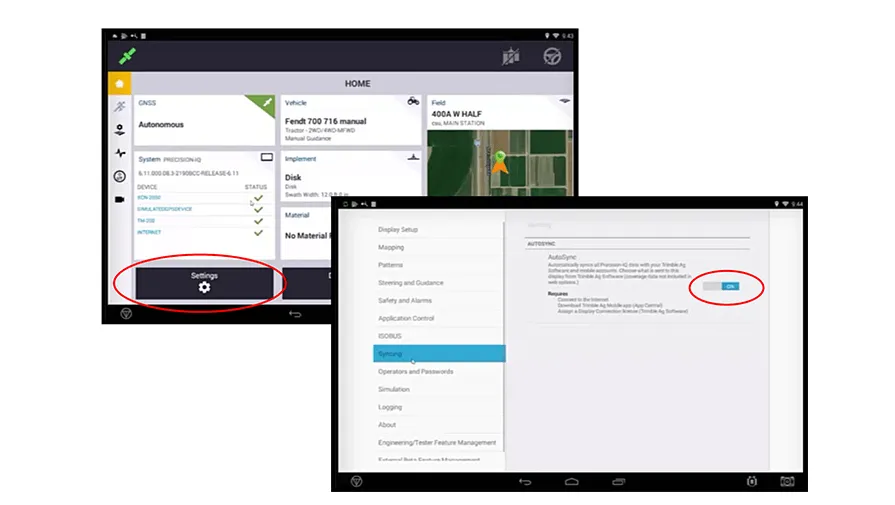
- Exit the Trimble Ag app and start Precision IQ.
- Then in Settings, Sync and enable this action by moving the button.
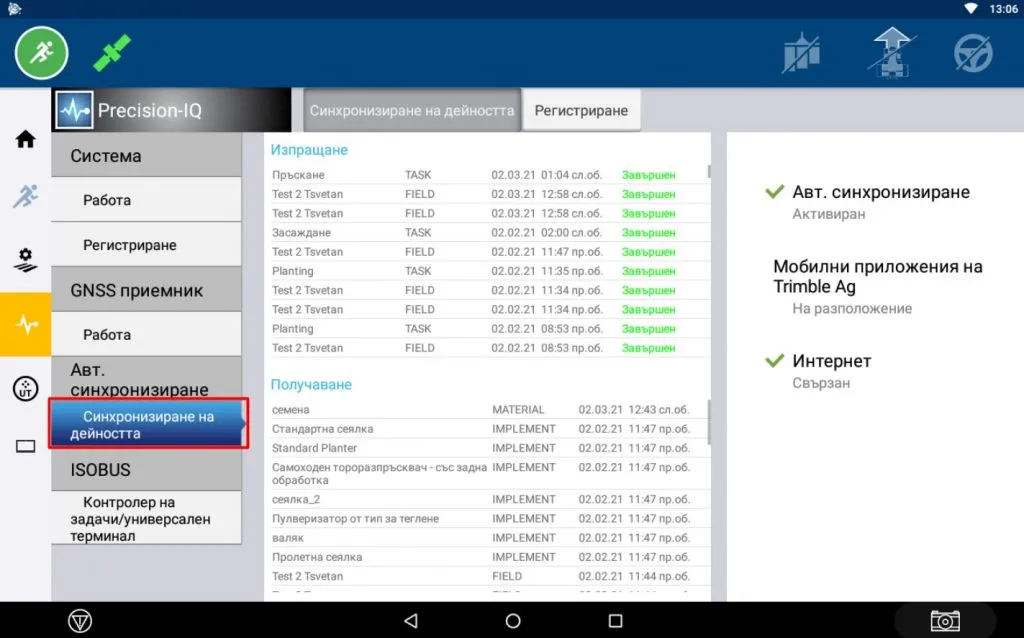
If everything is done you will see the option Synchronize activity when you enter the Precision IQ menu /as shown in the picture/
Mobile Phone App
The application gives access to all the menus for plots, materials and the fleet. Through the positioning function of the device, you can find the parcel closest to you or see a complete list of all parcels from the Plots menu. Through the application, a task can be created to a plot and sent to a specific display.
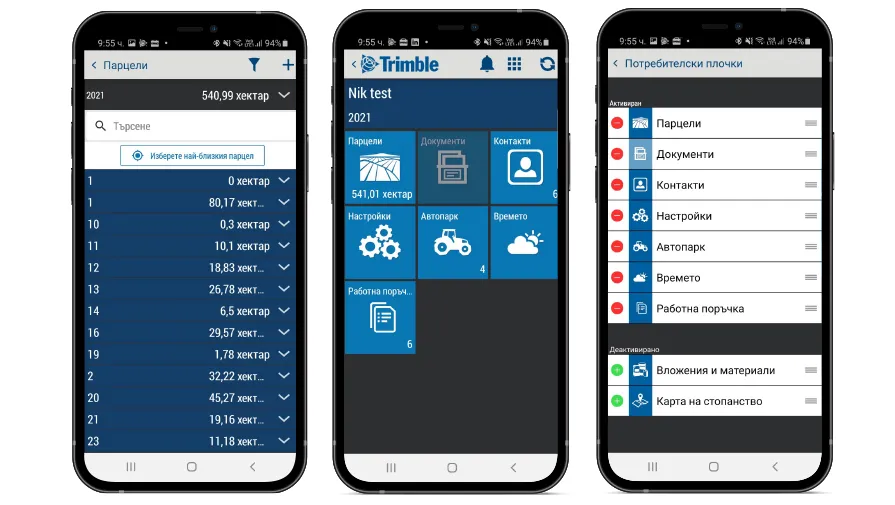
So you are ready to receive information about the fields, machines, inventory and materials from the office and from the other displays in the machines working in the field. Through AutoSync, data transfer is not only fully automatic, but also in a secure and easy way.
See more about the Trimble AutoSync software solution in the following video:
Other articles
Field Innovations: Chomstil is among the first farms in Bulgaria with a Kverneland Alentix spreader
.webp)